 icon available to Users on the Training Offerings dynamic object.
Did you know you can create empty Training Offerings? Why create an empty Training Offering? You might do so in a scenario whereby you are considering offering some sort of future training, but you have not yet invested the time to build out the items you will be mapping to it. Perhaps you want to find out how many Users would be interested in taking the offering before you invest this time.
You can make such items available for viewing on the Training Offerings Catalog dynamic object, and give Users the ability to express interest in partaking in the training offering by selecting the Self Service check box on the Training Offerings Catalog dynamic object. Doing so makes a icon available to Users on the Training Offerings dynamic object.
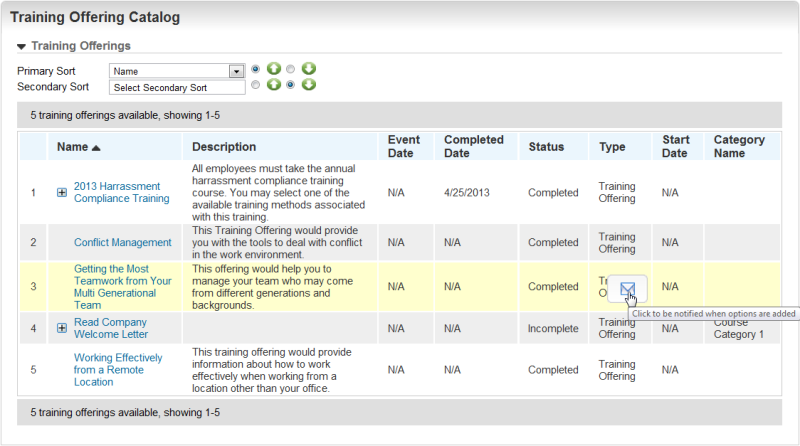
When Users rest their pointers over the offering name, the icon displays. They can click it to have their name added to a list of Users who would be interested in taking the offering should you provide it. Those Users will receive a Communication Message once you add new mappings to the Training Offering. See Training Offering Communication Messages for details on the Training Offering Communication Messages.
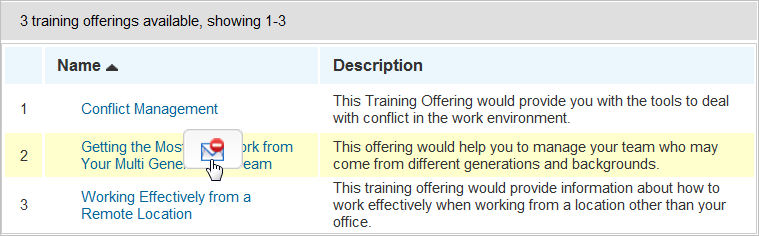
Likewise, if Users decide later they are not interested in the offering, they can rest their pointer on the offering again, and click  to remove themselves from the list. These Users will no longer receive the Communication Message when you add mappings to the offering.
As an Admin, you can see who has expressed interest directly on the Training Offerings page. The  icon displays next to the empty Training Offerings you created.
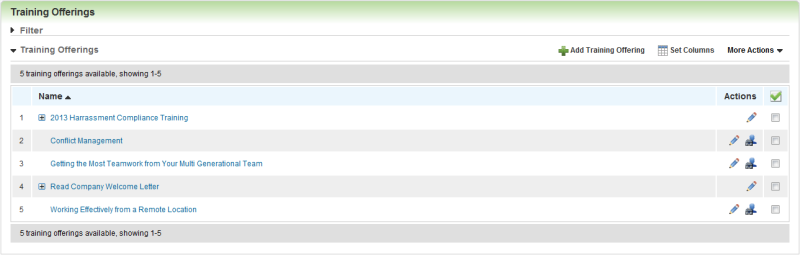
Click the icon to display the list of Users who clicked the icon on the Training Offering Catalog dynamic object.
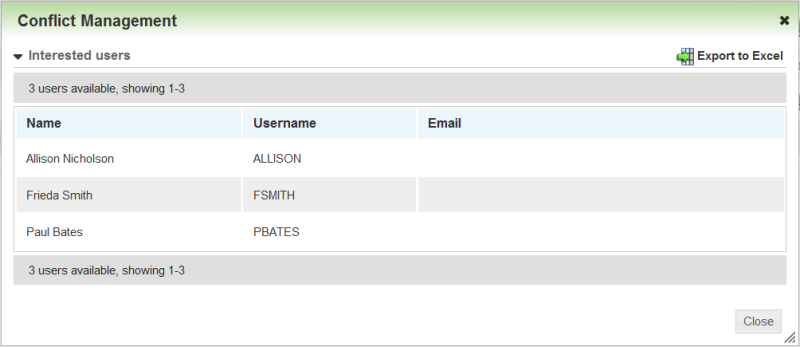
The list of Users can be exported to Microsoft® Excel.
You can use the existing Training Offerings Catalog dynamic object to set up a separate dynamic object to house just your empty Training Offerings.
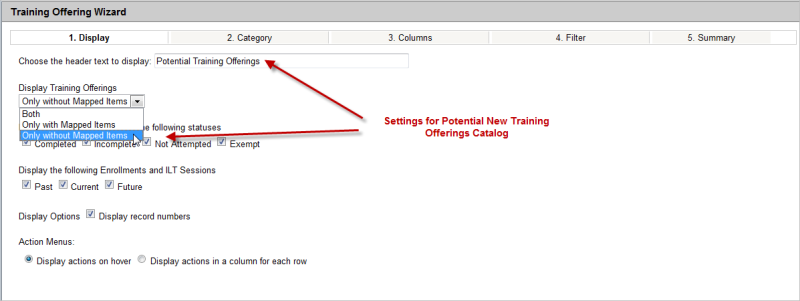
When you set up the dynamic object, select Only without Mapped Items from the Display Training Offerings drop-down list. Selecting it enables you to display a Training Offerings Catalog dynamic object containing only empty Training Offerings; in other words, just potential new offerings. You could also change the header text to call attention to the difference in the catalog. In the example above, the Admin typed "Potential Training Offerings." Users would see a catalog that looks similar to the following example.
Notice that the Admin in this example did not include the Categories section. You can add this section if you want to give Users more filtering capabilities. Also in this example, the Admin simply chose the Name and Description columns, since none of the other available columns really apply at this point. Note that the better your descriptions, the more interest you may generate.

|
You do not necessarily have to use this feature only for Training Offerings. You could use it to see who might be interested in a particular Enrollment, Course, or any number of items you are considering developing for your Users. This feature simply provides a means for you to see how many people would be interested in partaking in such an offering before you spend large amounts of time developing them. |

Copyright © 2010-2015, Oracle and/or its affiliates. All rights reserved.
 Related Topics